
Streamline Your Workflow Effortlessly
Master the Individual Ticket Lifecycle with FlowDocs
Discover how FlowDocs empowers your team to manage tasks efficiently, ensuring seamless collaboration and enhanced productivity.
Understanding the Ticket Lifecycle
1
Initiate a Ticket
Begin by creating a new ticket using our user-friendly interface, specifying all necessary details.
2
Assign and Collaborate
Assign the ticket to the relevant team members and collaborate in real-time to address the task.
3
Resolve and Close
Once the task is completed, update the ticket status to closed, ensuring all steps are documented.
Once a ticket is submitted, it enters the In Progress status and appears in the Ticket Hub for relevant users. An automated notification is dispatched to the appropriate workflow participants, signaling the start of the workflow process.
Ticket Tracking
The Ticket Details Page is where ticket tracking happens. This page contains essential information, including:
- Submission Details: Original data entered by the ticket creator.
- Workflow Status: Current position in the workflow, showing completed and remaining steps.
- Available Actions: Functionalities to update the ticket and workflow status.
- Activity Log: Historical record of all actions performed on the ticket.
Available Ticket Actions
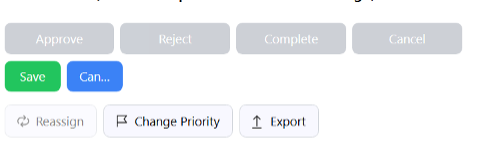
At the top of the ticket details page, users can access various controls to manage the ticket. However, many of these controls are restricted to authorized ticket responders (refer to the Who Is a Responder Documentation for more details):
- Approve Button: Active when the ticket’s current step is assigned to the user’s account or a group they’re part of. Pressing this button confirms the current step and triggers automatic reassignment to the subsequent workflow participant, accompanied by a notification.
- Final Step Approval: Completes the entire ticket once the final step is confirmed.
- Edit Button: Permits users to manually approve intermediate steps out of sequence. Only available to ticket responders.
- Reject, Complete, and Cancel Buttons: Update the ticket status to Rejected, Completed, or Cancelled, respectively. The Reject option allows selective rejection of individual steps rather than the entire ticket.
- Reassign: Changes the ticket’s assignee without modifying the workflow itself. This grants temporary ownership to the new assignee, activating additional responder-specific controls.
Special Considerations
Certain edge cases merit closer examination:
- Handling Out-of-Sequence Approvals: Occasionally, a workflow step might need to skip ahead due to unusual circumstances. The Edit button permits manual intervention to override the normal sequence, ensuring flexibility in workflow management.
- Temporary Ownership Transfer: Sometimes, a ticket may be stuck awaiting action from an unavailable user. The Reassign feature allows a ticket responder to assume temporary ownership, proceeding with the workflow until the original assignee returns.
- Notification Timing: Notifications are issued at key moments, such as workflow transitions or ticket status updates. This keeps all stakeholders informed, promoting transparency and accountability.
Example: Completing a Ticket Assigned to Another User
Consider a scenario where a ticket is initially assigned to another person. To complete it, a ticket responder would first reassign the ticket to themselves. Then, they can invoke the Complete action, validating all remaining steps and concluding the ticket successfully.
Best Practices for Effective Workflow Management
To maximize the utility of FlowDocs, adopt these best practices:
- Clear Definitions: Ensure workflow steps are clearly articulated, minimizing ambiguity.
- Training Sessions: Educate users on the nuances of ticket actions and workflow transitions.
- Regular Audits: Periodically review workflow configurations to identify areas for improvement.
- Empower Responders: Grant sufficient permissions to responders to enable smooth ticket resolution.
In conclusion, FlowDocs provides a comprehensive suite of tools for managing individual tickets, ensuring seamless workflow progression and efficient resolution of issues. Its flexibility and robust features make it indispensable for modern organizations aiming to enhance their operational efficiency.
See FlowDocs in Action
Watch our video demonstration to see how the individual ticket lifecycle feature streamlines your workflow and enhances team collaboration.
Ready to Optimize Your Workflow?
Experience the power of FlowDocs and revolutionize the way your team manages ticket lifecycles. Sign up now and take the first step towards more efficient and unified processes.