14 October 2026Business Process
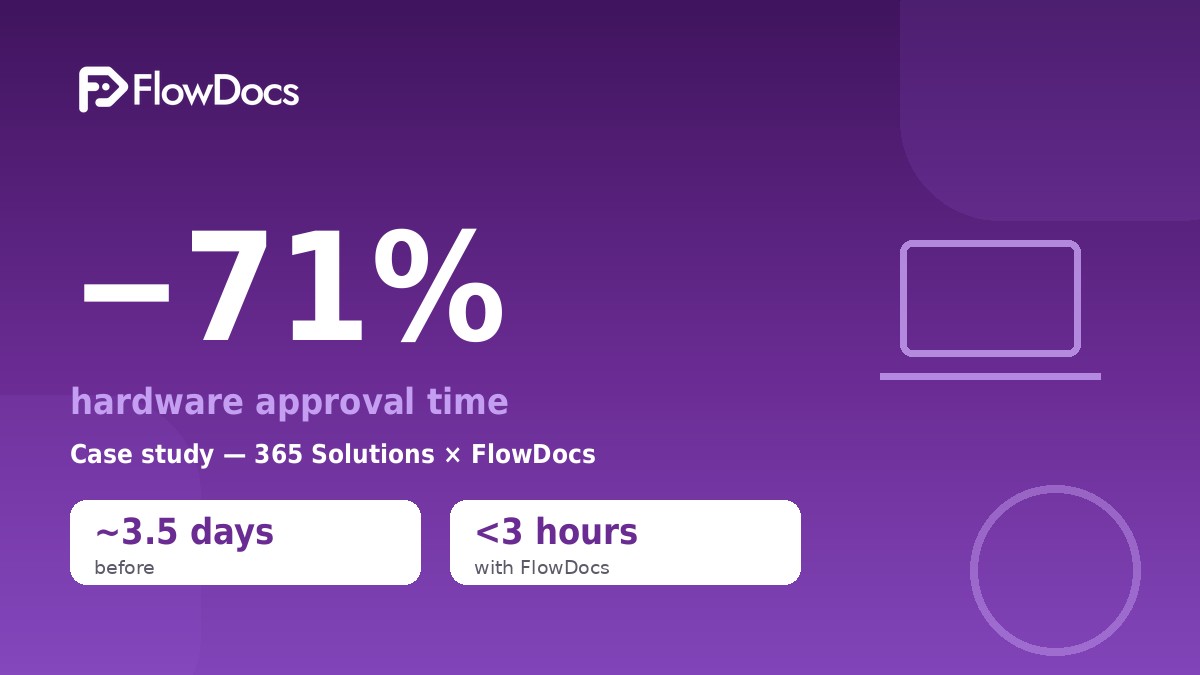
How 365 Solutions Cut Hardware Approval Time by 71%
365 Solutions Customer Story
See how a no-code workflow in Microsoft Teams brought hardware requests, decisions, and handoffs together in FlowDocs.
Faster Hardware Approvals, One Connected Workflow
Workflow Automation in Microsoft Teams
A laptop for a new hire used to take 3–4 days to approve. Here’s how one team made it take hours — without adding a single new tool.
Every growing company knows this moment: a new hire starts Monday, and they need a laptop. Simple request. What follows is anything but simple.
The invisible cost of email approvals
At 365 Solutions, the hardware request process looked like this:
A manager messages IT: “We need a laptop for the new hire”
IT asks back: which spec? What’s the budget?
The manager emails finance for budget approval
Finance forwards to the department head for confirmation
The department head replies — usually two days later
IT finally places the order — and finds the model is out of stock
Total elapsed time: 3–4 days. Total messages: 8–15 emails and chats. Visibility for the waiting employee: zero.
Nobody tracked the cost, because email makes waste invisible. The delays were simply “how things work.”
The fix: one workflow, where the team already works
365 Solutions didn’t buy a new platform and didn’t run an implementation project. They opened FlowDocs — which runs natively inside Microsoft Teams — and rebuilt the process in one afternoon:
Step 1 — One form instead of free-text messages. The manager submits a single form: employee name, role, start date, laptop spec, budget code. Nothing can be forgotten, nothing needs clarifying back-and-forth.
Step 2 — Automatic routing. FlowDocs sends the request to the right approvers in order — manager → budget owner → department head. No manual forwarding, no “who was supposed to see this?”
Step 3 — Approvals happen in Teams. Each approver gets a notification where they already work — one click on desktop or mobile. No new logins, no new tabs.
Step 4 — Real-time status for everyone. The requester sees exactly where their request sits: “waiting for finance.” No more chasing, no more “let me check my email.”
Step 5 — Full audit trail, automatically. Every approval is logged: who, when, what spec, which budget code. When procurement or compliance asks questions months later, the answer is two clicks away.
The result: 71% faster
Measured across their first month on FlowDocs:
| Metrics | Before | After |
| Hardware approval time | ~3.5 days | under 3 hours |
| Messages per request | 8–15 | 1 form + notifications |
| Request visibility | none | real-time status |
| Audit trail | email archaeology | automatic log |
“I can finally see where every request is. No more ‘let me check my email.'” — Operations Lead, 365 Solutions
Why it worked
The team didn’t change. The approvers didn’t change. The laptop didn’t change.
What changed was the place the process lived. Email is a conversation tool — great for discussion, terrible for process. When approvals move into a structured workflow inside the tool people open every morning, three things happen automatically:
Nothing gets lost. A form can’t be buried under newer emails.
Nothing waits on memory. Reminders fire by themselves.
Nothing is invisible. Status is a property of the request, not someone’s inbox.
And once the workflow worked for laptops, 365 Solutions templated it: monitors, software licenses, access requests — submit → route → approve → logged, every time.
Try it in your team
If your approvals live in email, the waste is there too — you just can’t see it yet. FlowDocs runs inside Microsoft Teams, takes minutes to set up, and your data stays hosted in the UAE (Azure UAE North).
When Every Hardware Request Took a Different Route
Before the change, hardware approvals were slowed by fragmented communication and inconsistent steps. Requests could move between conversations and teams without a clear, shared view of their status, making it harder to know who needed to act next. Those gaps created delays and extra follow-up, while different approaches to the same request made the process difficult to manage consistently.
From Request to Decision in Teams
Step 1
Submit a Standardized Request
Employees enter hardware needs and supporting details in a consistent FlowDocs form inside Microsoft Teams.
Step 2
Route to the Right Reviewers
A no-code workflow sends each request to the appropriate approvers, keeping handoffs and responsibilities clear.
Step 3
Record and Share the Decision
Reviewers approve or decline in Teams, with the outcome and request details available in one place.
Built for Faster, Clearer Approvals
Microsoft Teams Integration
No-Code Workflow Builder
Standardized Request Forms
Automated Request Routing
Role-Based Approver Assignment
Coordinated Review Steps
In-Context Decision Making
Centralized Request Details
Shared Approval Status
Visible Review History
Consistent Decision Records
Clear Ownership at Every Step
Fewer Manual Handoffs
Accessible Supporting Information
Repeatable Approval Processes
“With FlowDocs, our hardware approvals moved through a clear, consistent process in Microsoft Teams. We cut approval time by 71% and gave everyone better visibility into what needed to happen next.”
365 Solutions team
Make approvals easier to move forward
See how FlowDocs helps your team build no-code approval workflows, standardize each step, and keep work moving in Microsoft Teams.